

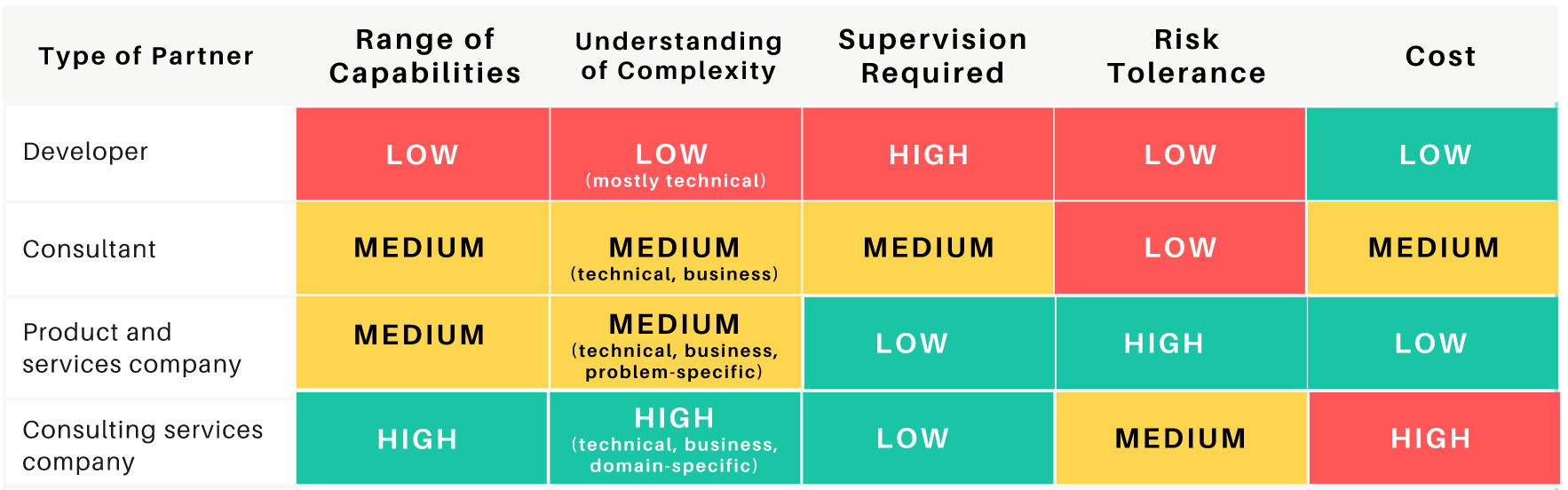
What SharePoint partner do you need? Here is a bulletproof decision matrix that can help you hire the right expert for your SharePoint project.

See SharePoint intranet examples that will cut your research time and help you brainstorm ideas for a new Office 365 intranet.
Chances are, you landed on this page because the SharePoint website examples you’ve seen so far look clunky, out-of-date, or just plain ugly—and you want your site to look just the opposite.
Many organizations search for SharePoint intranet examples because their current SharePoint homepage feels outdated, cluttered, difficult to navigate, or disconnected across multiple SharePoint sites.
The good news is that modern SharePoint Online can look dramatically better than most organizations realize.
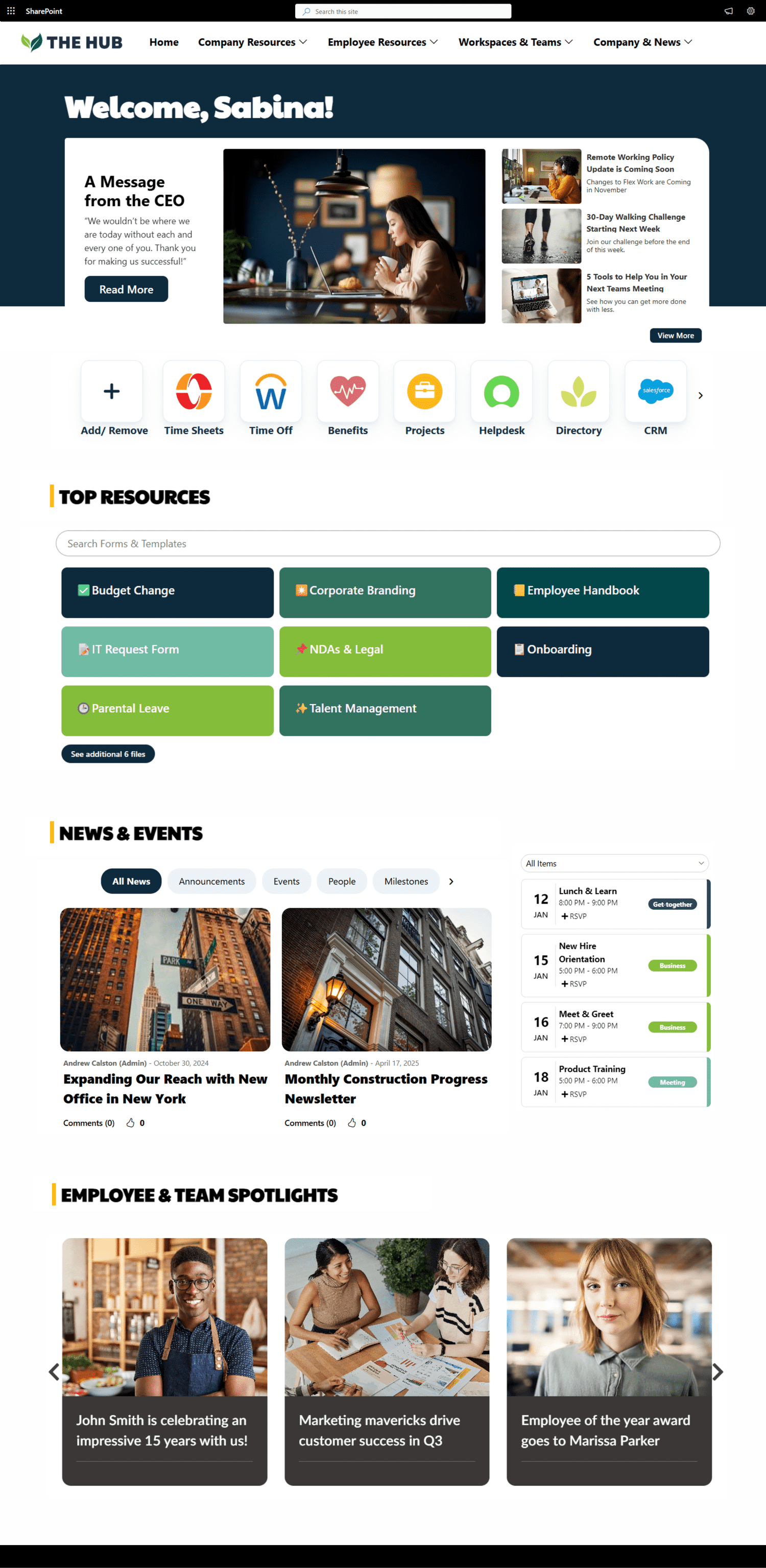
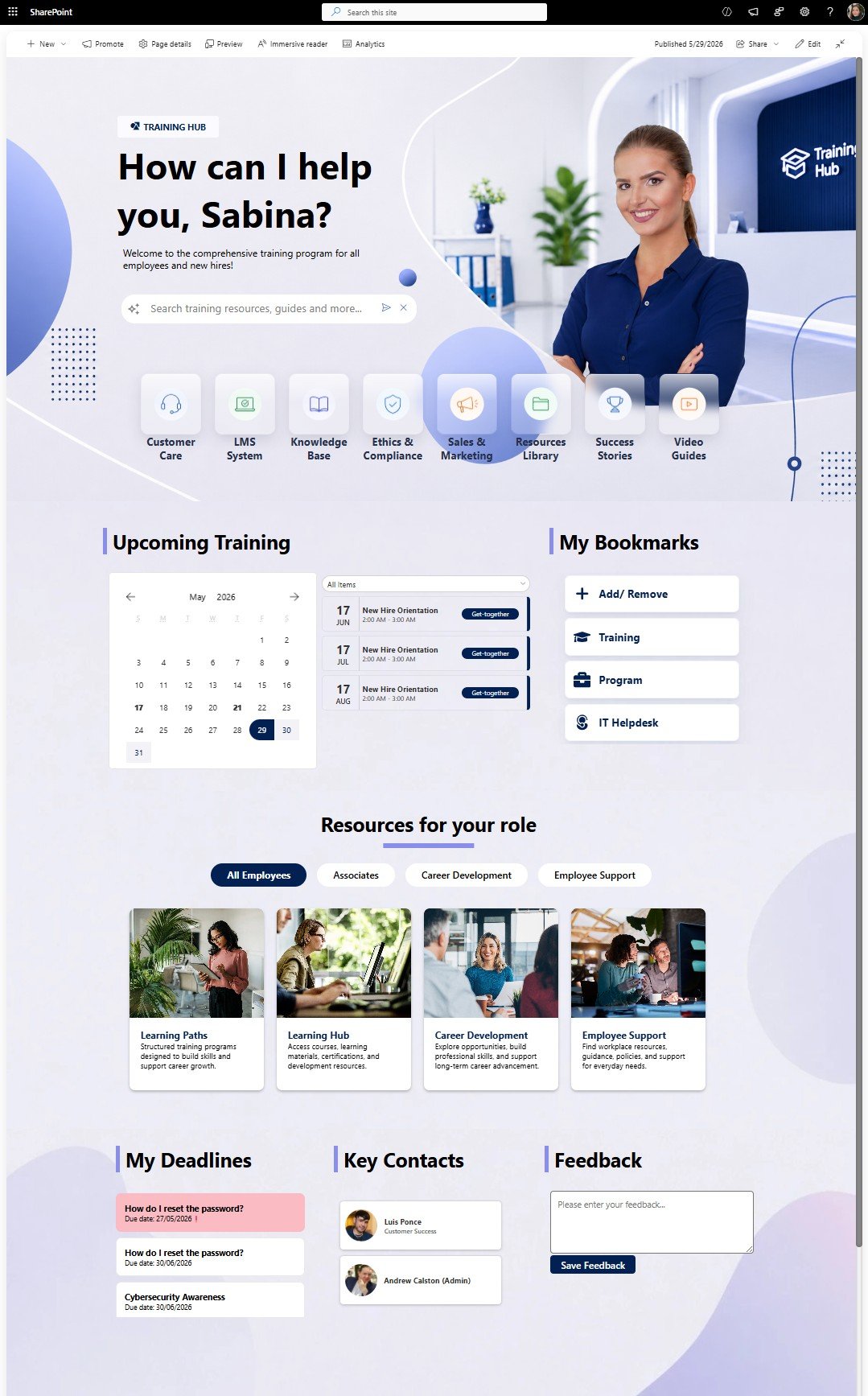
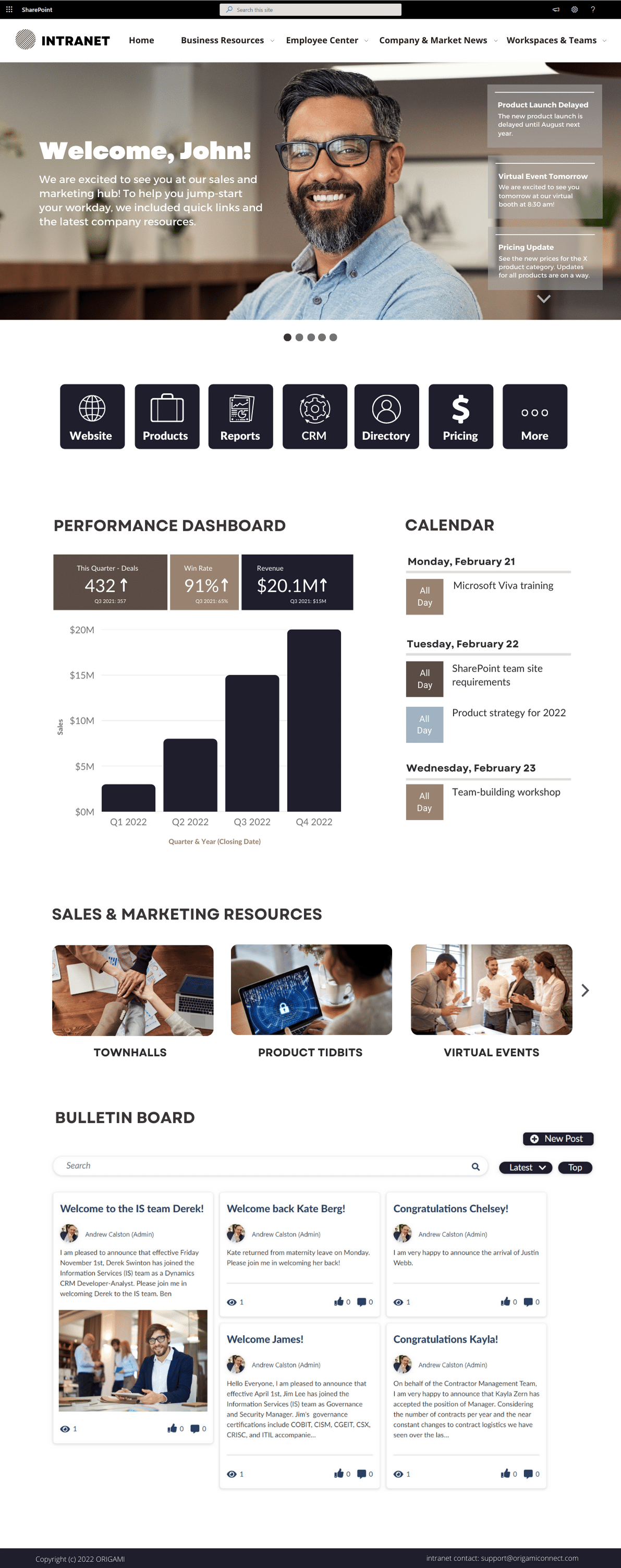
In this article, we’ll walk through 4 real SharePoint page redesign examples showing how organizations can modernize SharePoint
See nine great SharePoint site templates to drive your intranet design in 2025. The templates include the SharePoint start page, HR pages and team sites.
SharePoint lookbook is a basic gallery of designs that works great when you need a:
You can browse the list of available lookbook templates here: https://adoption.microsoft.com/en-us/sharepoint-look-book/
You can also see the same templates when creating a brand-new site in SharePoint.
Lookbook gives you some of the most common page templates, including:
Landing Pages
Department Sites
News Sites
Onboarding Sites
Learning & Training Sites
And more
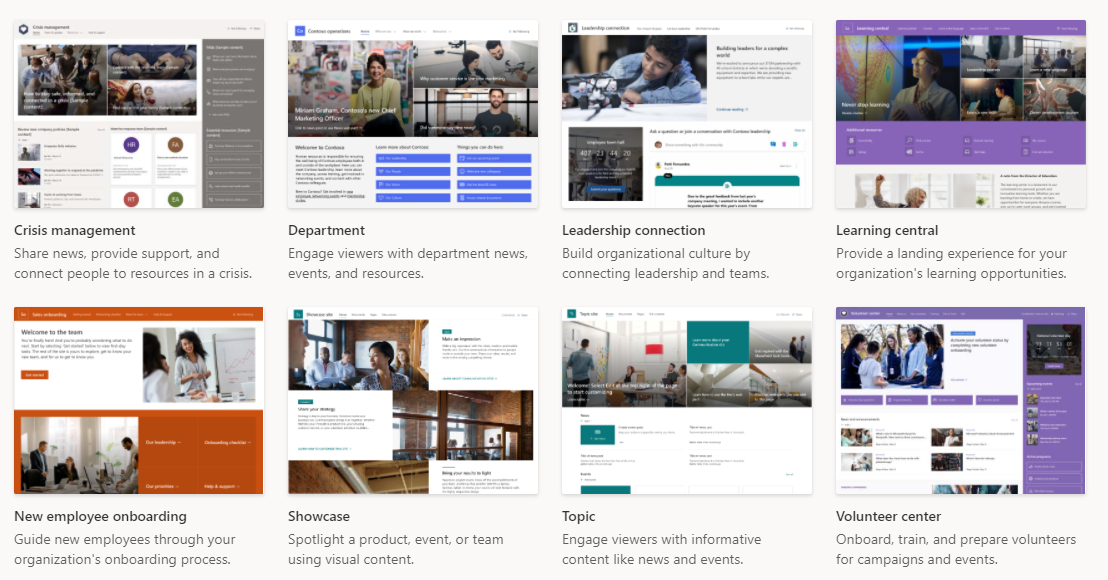
You must be able to create SharePoint templates from the lookbook in your tenant.
This required permission is one of the highest access rights in SharePoint Online. If you work for a larger organization, you will need to speak with your IT department to have the site created for you.
To download and install a lookbook template, follow these simple steps:
First, you must be a tenant administrator in your SharePoint Online tenant, as noted above.
Select the lookbook gallery template you like by going here: https://lookbook.microsoft.com/
When ready, click the [Add to your tenant] button
Choose the following:
a. Email
b. Site Title
c. Site URL
Click [Provision]
Wait a few minutes and then navigate to the site URL you chose. The template should be ready, just as seen in the picture.
When you download and install your chosen lookbook template in your SharePoint tenant, you'll immediately have access to a landing page you can edit.
Simply edit the page and add/remove or update apps as needed and preferred.
Here are a few things to remember when working with a sample site from the lookbook:
Remove all sample pages
Some templates in the lookbook, such as New Employee Onboarding, come with several sample pages you'll want to remove. Sometimes we see these pages left behind, and employees stumble upon them in search results, thinking it's trusted content when it isn't.
Replace or remove sample content on the page.
This might be obvious, but we've seen customers leave parts of the demo site on the page, confusing to everyone who thinks it's actual content. This includes images of look-alike reports, tasks, and diagrams.
Delete sample PowerPoints, documents, and sheets that users might find using search.
Give site permissions
Each time you install a lookbook template, SharePoint creates a brand-new site.
Sites in SharePoint require explicit access; otherwise, no one will see them and be able to use the valuable information. This rule goes for every template you download from the lookbook.
Delete sites you tried and didn't like
Since SharePoint makes a new site each time you try out a template, we recommend deleting sites you tried and don't like to avoid confusion with real sites employees will use.
As we shared earlier, the lookbook is excellent for practice/training, showing a prototype to others, and jumping-off points for beginners.
Here is a more detailed Pro/Con list.
Pros:
It can be installed in minutes
That's right! Templates can be installed in your tenant in just under a few minutes. If you need to train your users on using SharePoint, you can quickly create a ready-to-go site in minutes. This is a massive improvement compared to making pages from scratch.
No code is required to install the site.
Anyone can install a template as long as they have permission to do so—no need to hire a developer or write code.
If you're practicing your SharePoint skills, you will immediately know what is possible to build out-of-the-box without needing to customize anything.
Ready to click on examples to show your team
Instead of showing your team pictures of potential page designs, you can show them working pages.
Cons:
Limited options for branding and basic design
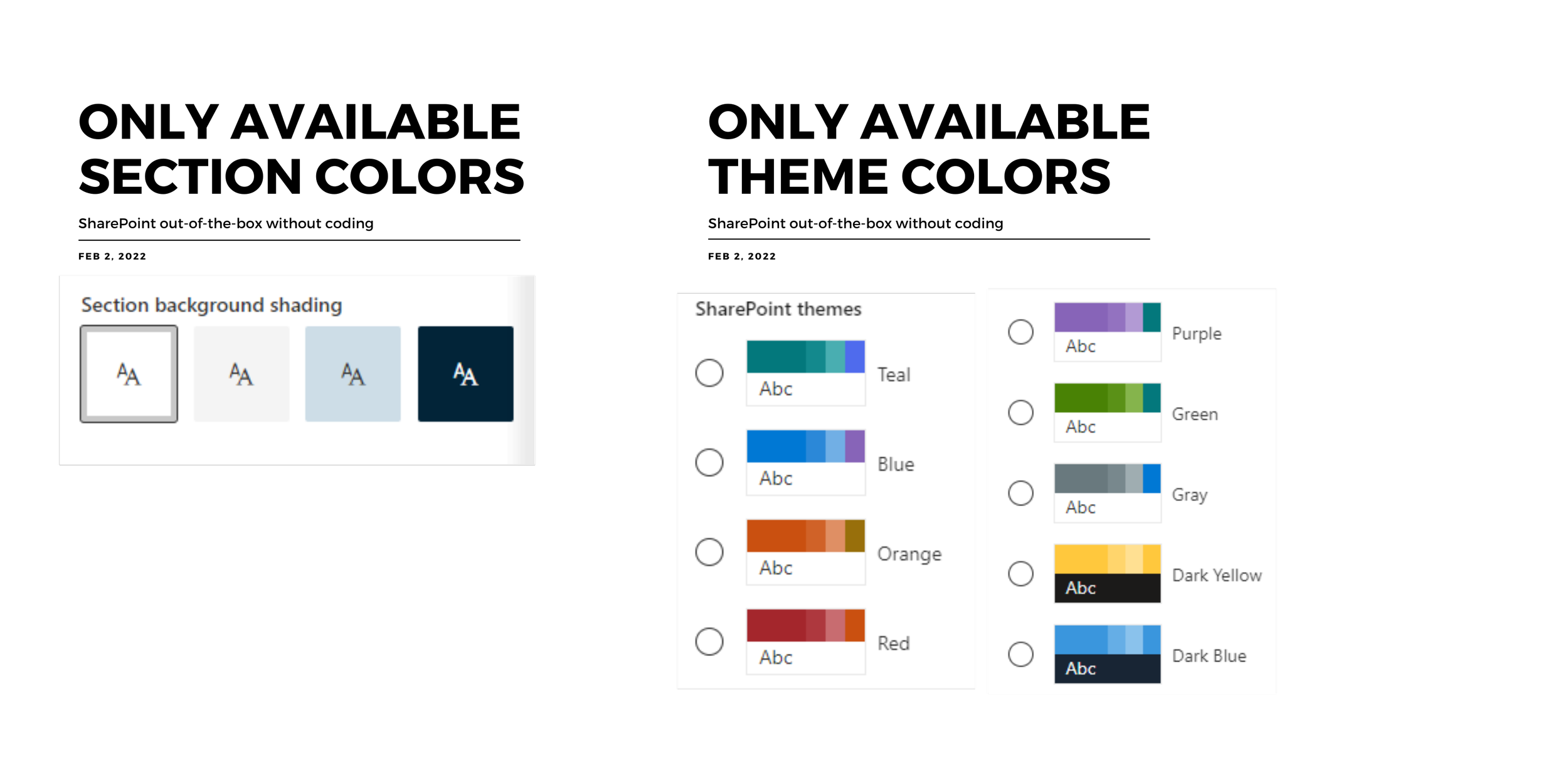
Fixed color combinations
There are limited color combinations in SharePoint (known as theme colors). This means you can't customize the site and page colors to match your corporate style guide without writing code.
Fixed font and iconography
The only font available without writing code in SharePoint is Segoe UI, with fixed sizing and color options. This breaks most of the corporate style guides.
Image-heavy designs
When you zoom in on lookbook designs, you'll see many page elements are images. This makes the page look colorful but may lack valuable tools for employees.
Limited app choices
Many images in lookbook templates can catch your eye, but as you start adding apps, you may find that your choices are limited and the page looks bland.
Limited page sections
SharePoint allows you to break the page into sections. However, you have limited combinations of sections and apps to choose from out-of-the-box.
Many organizations find these constraints limit their visual design requirements.

You can't add an individual lookbook page to your existing intranet
Each SharePoint online lookbook template is a separate site, so you can't selectively copy it if you like just one page. You have to create an entirely new site with that chosen lookbook template. Many companies see it as overkill and a permissions management nightmare.
Not an intranet template
Lookbook is not a pre-built intranet; it's a gallery of visual design samples (a collection of standalone pages).
If you're building an intranet, you'll need to tie these pages/sites into a user-friendly structure so employees can quickly find what they're looking for.
Before lookbook was available, each new site you created in SharePoint looked similar to this:

It's great to see that Microsoft built a collection of other examples.
But even with the SharePoint online lookbook:
72% of the 200 respondents we surveyed say that look and feel in SharePoint is still a big problem
Almost all survey respondents say they're building an intranet in-house because they want to stick with SharePoint but worry that adoption will suffer if their intranet doesn't look good.
It's hard for developers to design, and contracting a designer has a risk that that designer doesn't understand the constraints of SharePoint.
Most customers we speak to prefer using a combination of the pre-built SharePoint intranet, templates, and apps, along with in-house resources.
For example, the product we built, ORIGAMI, offers templates and apps to create a beautiful, website-like Office 365 intranet while keeping the solution in-house.
Here are the top 21 capabilities Origami provides on top of the SharePoint out-of-the-box.
Our customers say that Origami helped them improve both visual design and user experience.

Origami provided some innovative options and customizations that SharePoint out of the box could not meet.

Origami is aesthetically pleasing compared to other solutions. It comes with ready-to-go SharePoint templates, so you can build an intranet faster with less work.

Yaroslav Pentsarskyy is an Enterprise Solutions Architect at ORIGAMI. Yaroslav has been awarded as Microsoft Most Valuable Professional for 8 years in a row and has authored and published 4 intranet books.
Yaroslav is also a frequent presenter at industry conferences and events, such as the Microsoft SharePoint Conference and Microsoft Ignite.
Get a bold and intuitive SharePoint intranet portal that feels like it’s been made just for you.
SharePoint is one of the best tools to build your company’s intranet.
However, we often hear that the platform is too restrictive and requires customization to:
Make the design look modern
Make the search easy
Integrate with other corporate systems
Above are the top reasons why companies feel they need custom SharePoint development.
According to Nielsen Norman, the best intranets can take an average of 23 months and a team of 17 to build. That’s long and expensive.
In contrast, using an intranet solution, you can reduce development by 9X for a medium-sized organization.
Here is a comparison of alternatives for building your SharePoint intranet.

The best part of using SharePoint intranet solutions is that there is no waiting around for a 2-month design. You can see your design immediately.
Of course, the example designs may not be custom-tailored to your brand, but you’ll see what you’re getting into.
Fun fact: a few of our customers, months before they even reached out to us, have used the examples on our website to mock up their designs!
You’re welcome to do that too.
To help you out, below is a downloadable PDF with our top examples in high resolution.

When intranet solutions first appeared, they were rigid (some still are).
You want a modular SharePoint intranet solution, meaning every major part of the page can be taken out of the page.
This way, you can mix and match parts of the page.
With an intranet solution like that, you can always update functionality on a page when needed.
This is precisely what we do with Origami. When design trends change (and they do), we give customers new tools to update parts of their page at will.
You don’t want a SharePoint intranet portal that tells you what you can and can’t add to the page.
One valid question many IT leaders have with any solution is:
“What if Microsoft changes something and it breaks the intranet solution?”
You might hear responses such as “nothing ever breaks” or “we follow best practices, so nothing should ever break.”
That may be comforting but not reassuring.
Our response to that is that we provide a warranty for any defects. It’s that simple.
Usually, customers want to know these three areas when comparing Origami’s SharePoint intranet in a box with other solutions.
The implementation process was perfect: the schedule, the project management, and the brainstorming activity. It helped us visualize what we're going to build. Without this process, it would have taken way longer to build our intranet, and we might have created something that is not a fit ... read more
Origami has been absolutely fantastic about their support, it's definitely the best support I've ever received from any of the external products that we use ... read more
Best custom intranet out there. I researched several intranet options, and Origami made the use and administration of SharePoint easy, intuitive, and design stunning. Their apps make a more engaging experience for our users ... read more
We've put together several of our favorite SharePoint site examples all built using Origami to help you come up with some amazing ideas! Learn the essential components for great intranet templates today!
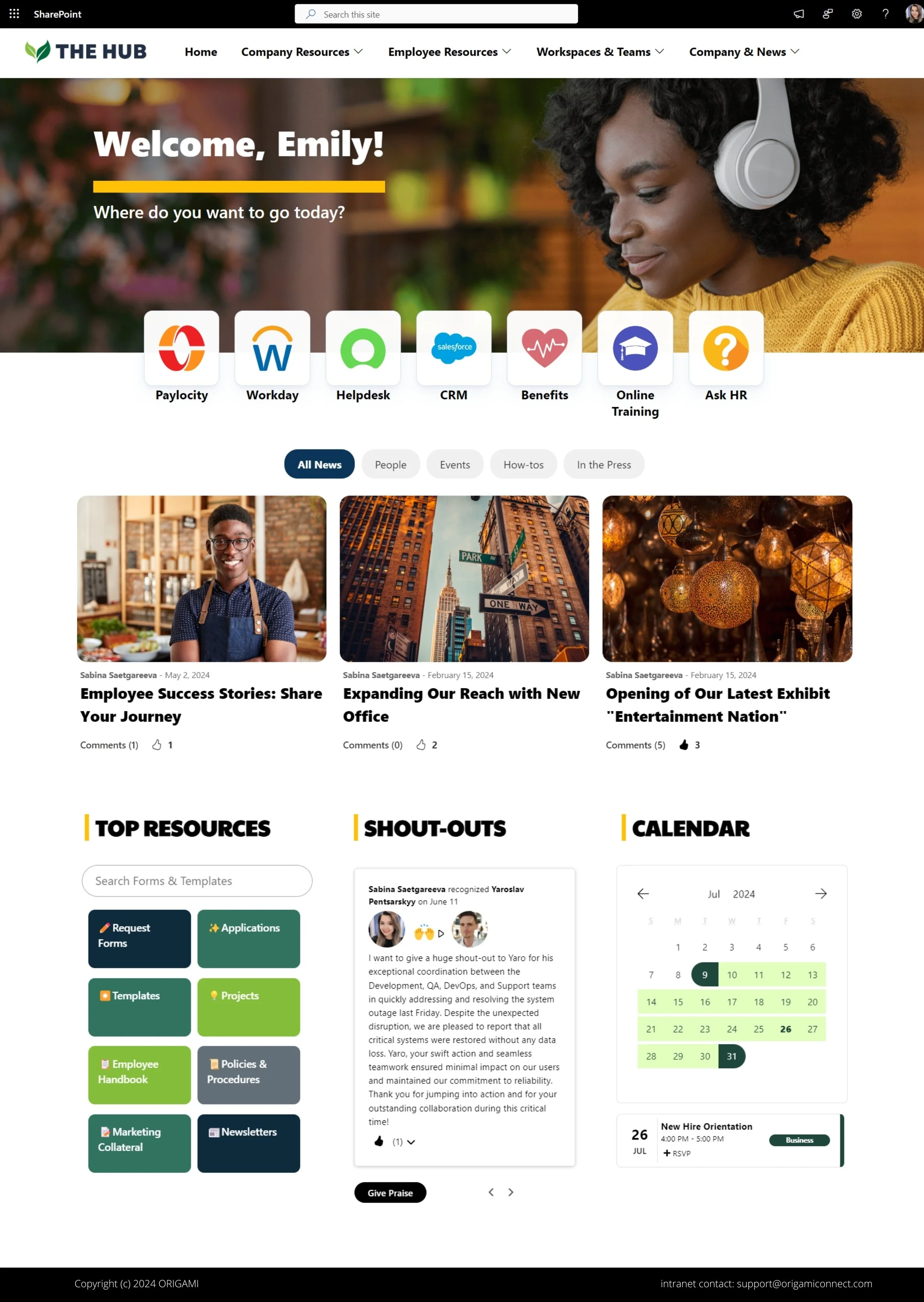
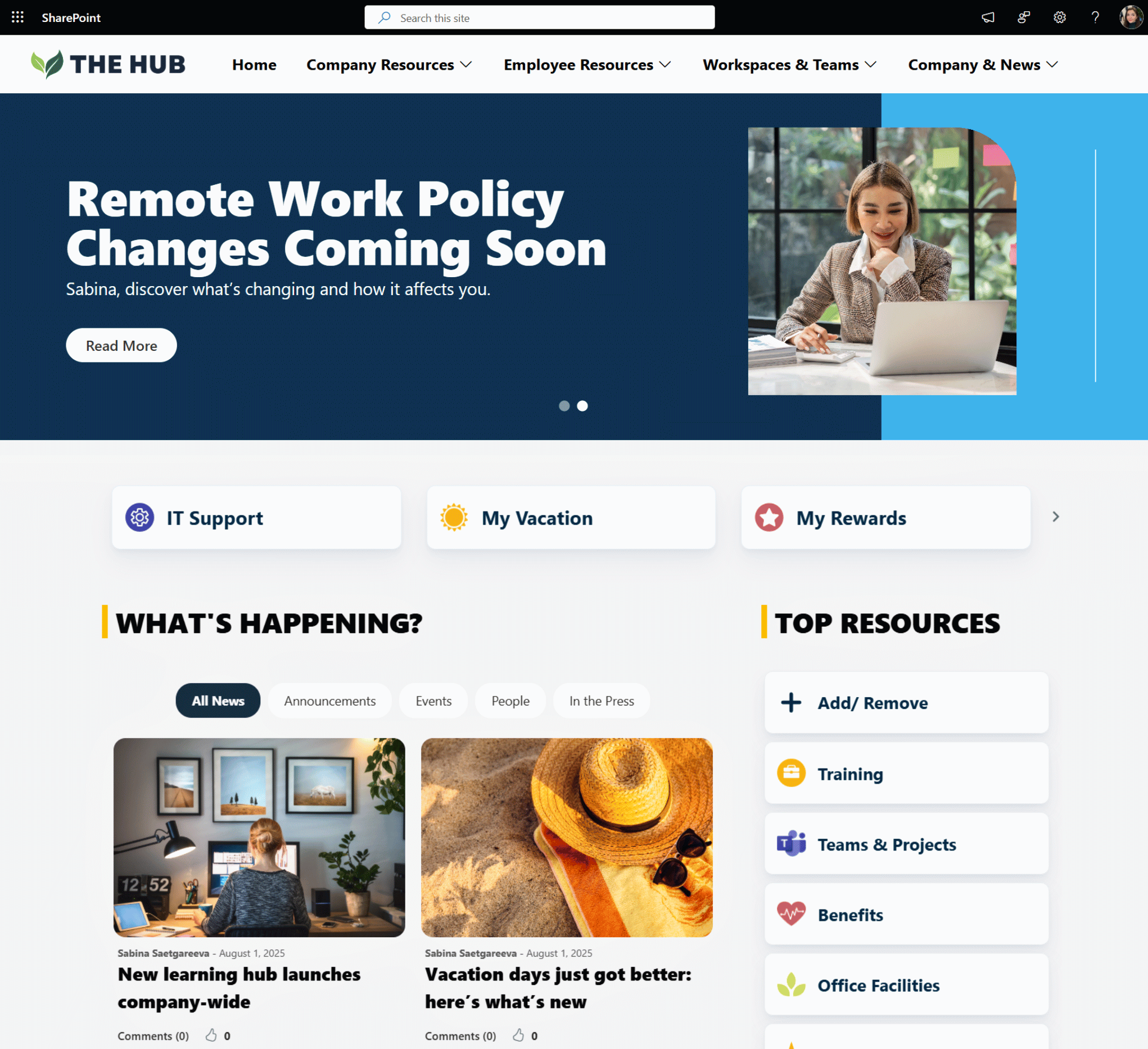
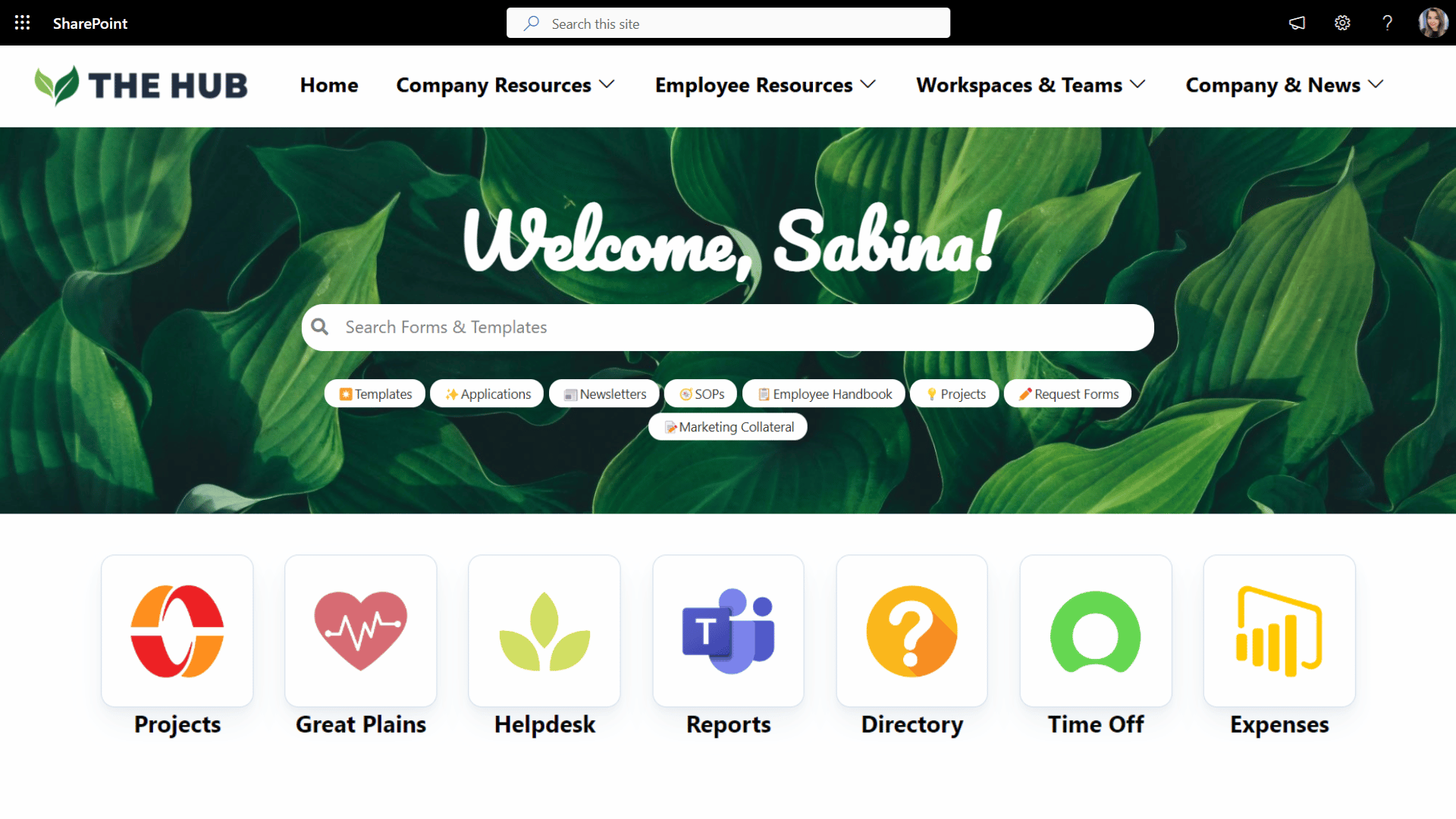
See how we turned a default SharePoint homepage into a modern and stunning landing page.
The purpose of the intranet homepage is to provide quick access to what employees need most. This includes: apps and tools employees need most frequently, critical communication, stats and performance at a glance, and easy navigation to get to more resources.
What you’ll see here are the things you can do TODAY to make your homepage POP and create an experience your employees will value.
The most successful HR portals have the tools and resources to cover all three categories of employee needs.
When you organize your HR portal in a way that matches employee needs, essentials first, at the top of the page, available with minimal effort, followed by other needs in order of importance, employees will find your HR portal useful, intuitive.
Let’s get more specific.
Turn your SharePoint into a modern, website-like experience with no code using smart design tips and Origami web parts.
UI design is the most obvious and distinct feature; like the cover of the book, people will judge it first.
The less obvious is how you make it so employees keep coming to your site daily!
Here is how you do it.
Most companies have never done an intranet project—and the lack of process often gets them in trouble. Without a clear process, stakeholders often come to meetings but fail to reach a consensus. They may look at the design and hate it but may not be able to articulate why it’s not working.
Fortunately, a refined process can make everything easier: the visual design, getting constructive feedback from stakeholders, content authoring, and configuration.
Explore SharePoint intranet design templates to provide you with food for thought if you’re thinking of creating a new intranet at your organization. Understand essential intranet design and templates to achieve a successful intranet platform.
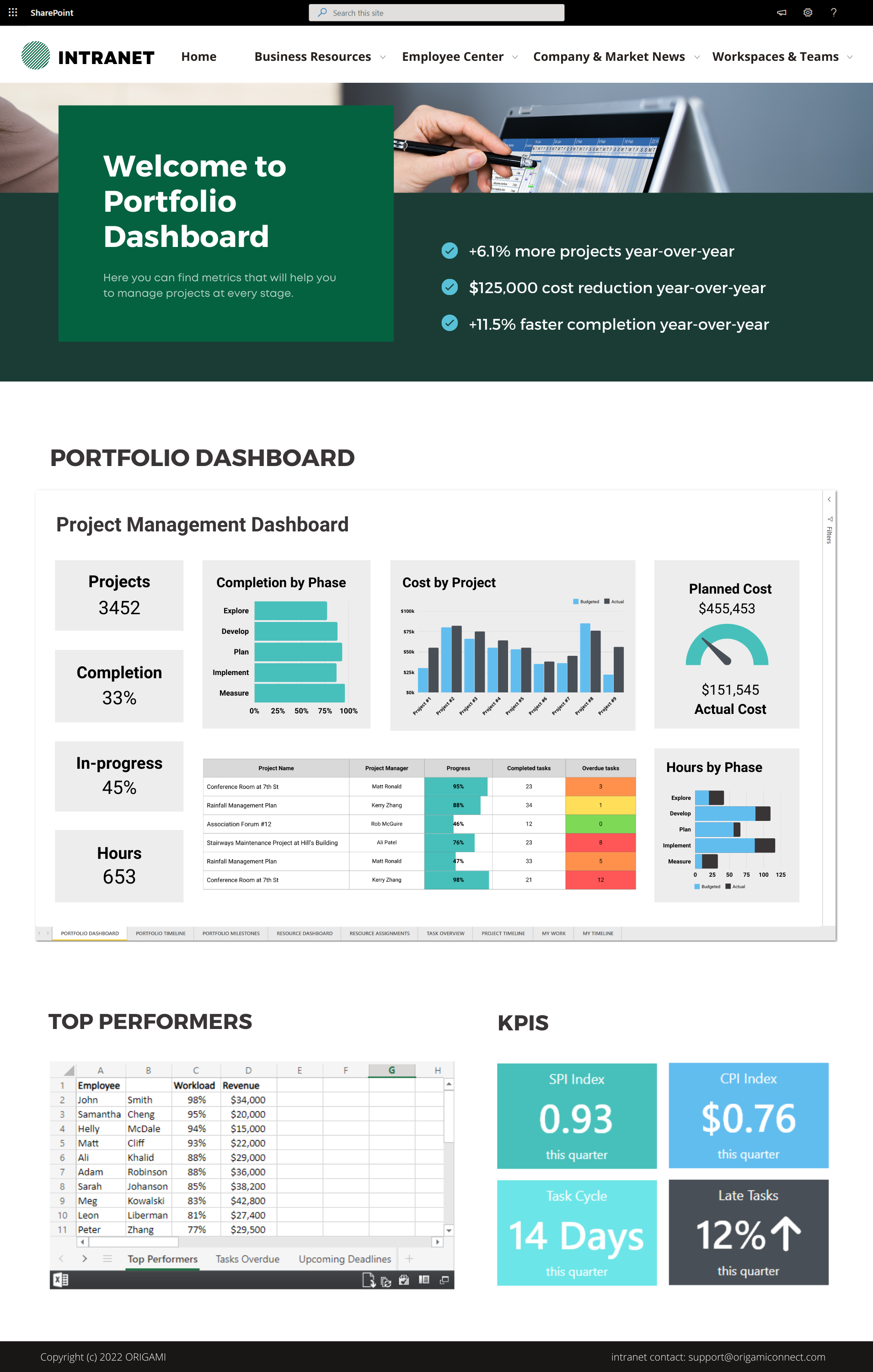
Can you use SharePoint for Project Management? What tools are available to you in Microsoft 365? See examples of SharePoint project sites and dashboards.
Most companies have never done an intranet project—and the lack of process often gets them in trouble. Without a clear process, stakeholders often come to meetings but fail to reach a consensus. They may look at the design and hate it but may not be able to articulate why it’s not working.
Fortunately, a refined process can make everything easier: the visual design, getting constructive feedback from stakeholders, content authoring, and configuration.
Summary: Intranet governance may sound complicated, but it can help you drive engaging content and decrease the burden of maintenance on your IT and Communications teams. What’s included in the initial governance list will depend on which features you’re using on your intranet. In addition to having an initial set of rules, plan to have an ongoing governance review to update the list.
Intranet governance is simply a list of processes along with responsible parties involved.
Let’s say, someone from HR wants to update an expense form template on the intranet.
Who should do it? Whoever is less busy or a specific person?
Should we keep an old version?
Should we let everyone know about the update? If so, how would we communicate this change?
Is everyone on the HR team aware of how to handle this new template?
Should anyone approve the template before it’s published?
What happens if employees have questions about the new template and, who should they contact?
As you can see, without these questions answered there are lots of potential routes. Having governance around templates, in this case, will help everyone on the intranet team understand their roles and who’s accountable for what, and the process to follow.
The alternative is to handle each request in an ad-hoc way, which increases the burden on your resources; in organizations, with > 200 users that’s not even sustainable.
Avoid generic templates of 100 pages worth of SharePoint governance. These are too general to be useful. They provide a lot of details around out-of-the-box features but nothing related to your organization.
It doesn’t take a lot to create an efficient governance document of a few pages which tackle relevant parts of your intranet.
Here are the key SharePoint intranet governance considerations we see on every intranet project:
Creating New Generic Content Site & Team Site. If you have several templates on your site such as project sites, ensure you have checklist for those too
Naming conventions (Title and URL)
Branding
Permissions for Readers, Contributors and Owners. Ensure restricted sites have adequate permissions set up
Update to Footer Links, if the site lives under 2nd, or 3rd navigation levels
Update to other navigation links and apps
Creating a Page
Using WIKI versus Site Page
URL and naming conventions
Determine apps required for the page in this section
If apps require dependencies, add them as needed
Layout
Which page layout to use for which type of the page
[One column with sidebar]
[One column]
etc.
Content and Styles
Styles for Headings
Styles for normal text
Font sizes
Embedding rules
Home Page (this being the most prominent page it needs strict editing rules)
Rules about editing the content on the page
Rules about changing the layout of the page
Rules related to updating key apps on the home page such as new carousels, links, shout-outs, polls, etc.
Landing Pages (these are the second most prominent types of the page; they also need editing rules)
Rules about editing the content on the page
Rules about changing the layout of the page
Apps related to the home page and related rules. Such as ‘do not place more than 10 quick links on the page’, or ‘keep naming conventions of the links on the page’
Dependencies for specific apps. For example, whether apps require lists and libraries to operate, what are those, and what is the required metadata
Image resolutions for apps to best render their pages
Renaming of sites and pages to avoid broken links
Alerts on lists that collect user input
Versioning rules
Content review process
Archiving rules
Removing obsolete content
An intranet contains content from a variety of sources and being able to find out quickly who is responsible for which content is not always so easy.
Every governance document must contain roles and responsibilities when it comes to key areas of running the intranet, those are:
Intranet Owners (individuals who own the home page, landing pages, and key areas of the site, they also assign area owners but are not technical users)
Area Owners (individuals who control specific areas of the site, such as HR; they also assign Area Authors)
Area Authors (individuals who create content for the area of the site)
Platform Owners (technical users who monitor and control the platform: Office 365, SharePoint, etc.)
For every area in your intranet information architecture, you need to determine who of the above will have which role, including:
Who are the key contacts?
What is the approval process?
What is the support process?
The governance committee is the key to ensuring your governance evolves based on the lessons learned and decisions are made quickly to accommodate changes.
To ensure you get the most out of your governance committee, follow these key considerations:
Have a mechanism to capture issues and feedback.
Issues rarely happen randomly, they are likely a pattern or a gap that can lead to more of the same
Provide the ability to provide feedback for your users
Communicate expected SLA
Capture issues in the issues log and determine the patterns
Prioritize issues and impact (diagram below illustrates how updates can be prioritized)
Determine updates to your governance
Communicate governance changes to affected parties: Area Owners, Authors, etc

This chart illustrates how proposed governance updates can be prioritized to determine which ones to tackle next.
The value of governance is its practicality and transparency. The easier it is for everyone to know the process, the less of a burden managing the site will be.
Do you maintain governance plan? What are the challenges you find with it?

Yaroslav Pentsarskyy is the Director of Product at Origami. He's also 8 time Microsoft MVP, speaker at many local and worldwide tech events, and a published author of several SharePoint related books.
Get inspired with six company intranet examples built on data collected from hundreds of intranet sites. See intranet best practices and design ideas to help you build an intranet employees will love.
See SharePoint intranet examples that will cut your research time and help you brainstorm ideas for a new Office 365 intranet.
Chances are, you landed on this page because the SharePoint website examples you’ve seen so far look clunky, out-of-date, or just plain ugly—and you want your site to look just the opposite.
Many organizations search for SharePoint intranet examples because their current SharePoint homepage feels outdated, cluttered, difficult to navigate, or disconnected across multiple SharePoint sites.
The good news is that modern SharePoint Online can look dramatically better than most organizations realize.
In this article, we’ll walk through 4 real SharePoint page redesign examples showing how organizations can modernize SharePoint
See nine great SharePoint site templates to drive your intranet design in 2025. The templates include the SharePoint start page, HR pages and team sites.
See four brilliant SharePoint communication site examples and templates to inspire you in 2022!
The purpose of the intranet homepage is to provide quick access to what employees need most. This includes: apps and tools employees need most frequently, critical communication, stats and performance at a glance, and easy navigation to get to more resources.
What you’ll see here are the things you can do TODAY to make your homepage POP and create an experience your employees will value.
The most successful HR portals have the tools and resources to cover all three categories of employee needs.
When you organize your HR portal in a way that matches employee needs, essentials first, at the top of the page, available with minimal effort, followed by other needs in order of importance, employees will find your HR portal useful, intuitive.
Let’s get more specific.
Get inspired with six company intranet examples built on data collected from hundreds of intranet sites. See intranet best practices and design ideas to help you build an intranet employees will love.
Ready to take your SharePoint design into 2025? In this post, I’ll share 20 SharePoint design tips and best practices to make your SharePoint pages stand out and look like a stunning modern website!
With Office 365 you can create SharePoint site templates so that users can quickly build up their content without having to worry about configuring pages and components on them over and over again.
This technical video below demonstrates how to do that in a few steps.
In this quick how-to video, we look at how you can easily script site template provisioning in SharePoint Online modern communication and team sites.
Links in this video:
Code used in the video:
//------------------------------
// Theme Provisioning

$themepallette = @{
"themePrimary" = "#9b59b6";
"themeLighterAlt" = "#faf7fb";
"themeLighter" = "#f5eef8";
"themeLight" = "#ebdef0";
"themeTertiary" = "#d5b9e0";
"themeSecondary" = "#a569bc";
"themeDarkAlt" = "#8e4ba8";
"themeDark" = "#6e3a83";
"themeDarker" = "#572e67";
"neutralLighterAlt" = "#f8f8f8";
"neutralLighter" = "#f4f4f4";
"neutralLight" = "#eaeaea";
"neutralQuaternaryAlt" = "#dadada";
"neutralQuaternary" = "#d0d0d0";
"neutralTertiaryAlt" = "#c8c8c8";
"neutralTertiary" = "#d6d6d6";
"neutralSecondary" = "#474747";
"neutralPrimaryAlt" = "#2e2e2e";
"neutralPrimary" = "#333333";
"neutralDark" = "#242424";
"black" = "#1c1c1c";
"white" = "#ffffff";
"primaryBackground" = "#ffffff";
"primaryText" = "#333333";
"bodyBackground" = "#ffffff";
"bodyText" = "#333333";
"disabledBackground" = "#f4f4f4";
"disabledText" = "#c8c8c8";
}

Add-SPOTheme -Name "Origami Purple" -Palette $themepallette -IsInverted $false

//------------------------------
//Site Structure Provisioning

$site_script = @'
{
  "$schema": "schema.json",
  "actions": [
    {
		"verb": "applyTheme",
		"themeName": "Origami Purple"
    },
    {
	   "verb": "addNavLink",
	   "url": "/",
	   "displayName": "Employee Services",
	   "isWebRelative": true
	},
    {
	   "verb": "addNavLink",
	   "url": "/",
	   "displayName": "Business Services",
	   "isWebRelative": true
	},
    {
	   "verb": "addNavLink",
	   "url": "/",
	   "displayName": "Workspaces",
	   "isWebRelative": true
	},
	{
    "verb": "setSiteLogo",
    "url": "https://[your logo url].png"
	}
  ],
  "bindata": { },
  "version": 1
}
'@


Add-SPOSiteScript -Title "Origami" -Content $site_script -Description "Creates Origami Site Script"
Add-SPOSiteDesign -Title "Origami" -WebTemplate "68" -SiteScripts "" -Description "Origami Site"


//------------------------------
// Cleanup
Remove-SPOTheme -Name "Origami Purple"
Remove-SPOSiteScript
Remove-SPOSiteDesign
If you feel like this video is too technical, you’re not alone.
We’ve been receiving requests from many Communication Managers, Project Manager, and Designers to help them set up their intranet or a site template.
We have created a pre-built SharePoint intranet solution to help you with any customizations or configurations you may need to set up your intranet, below is an example of a modern SharePoint site template available with Origami web parts.


Yaroslav Pentsarskyy is a Director of Product at Origami. Yaroslav has been awarded as Microsoft Most Valuable Professional for 8 years in a row and has authored and published 4 intranet books.
Yaroslav is also a frequent presenter at industry conferences and events, such as the Microsoft SharePoint Conference and Microsoft Ignite.
Org chart is a useful tool especially to new employees in helping them to understand your company structure. Setting up is easy, and any updates are picked up automatically when you add new users to the directory.
Many clients have asked me how they can set up instant and company-wide video communication feed to all of their employees. If you’re a small company, you can set up an MS Teams channel and invite everyone to join.
For larger organizations with hundreds or thousands of users, inviting everyone to a meeting is not a feasible solution.
Intranet news targeting is a handy feature allowing you to target relevant news to employees based on their office location. Setting up is easy, and you can start targeting your communication in 3 easy steps.
In this quick how-to video, we look at how you can apply your own company colors to SharePoint Online modern communication site. I'd call this how-to no code since small amount of code you have to copy is just copy & paste.
Links in this video:
Code used to update the theme:
$themepallette = @{
"themePrimary" = "#eab905";
"themeLighterAlt" = "#fffcf2";
"themeLighter" = "#fef9e4";
"themeLight" = "#fef3ca";
"themeTertiary" = "#fde590";
"themeSecondary" = "#fac810";
"themeDarkAlt" = "#d3a604";
"themeDark" = "#a48103";
"themeDarker" = "#816603";
"neutralLighterAlt" = "#e8dfdf";
"neutralLighter" = "#e5dada";
"neutralLight" = "#ddd0d0";
"neutralQuaternaryAlt" = "#d1bfbf";
"neutralQuaternary" = "#c9b4b4";
"neutralTertiaryAlt" = "#c3abab";
"neutralTertiary" = "#d6d6d6";
"neutralSecondary" = "#474747";
"neutralPrimaryAlt" = "#2e2e2e";
"neutralPrimary" = "#333333";
"neutralDark" = "#242424";
"black" = "#1c1c1c";
"white" = "#ece5e5";
"primaryBackground" = "#ece5e5";
"primaryText" = "#333333";
"bodyBackground" = "#ece5e5";
"bodyText" = "#333333";
"disabledBackground" = "#e5dada";
"disabledText" = "#c3abab";
}

Add-SPOTheme -Name "Origami Yellow" -Palette $themepallette -IsInverted $false
Code to remove the theme:
Remove-SPOTheme -Name "Origami Yellow"

Yaroslav Pentsarskyy is the Director of Product at Origami. He's also 8 time Microsoft MVP, speaker at many local and worldwide tech events, and a published author of several SharePoint related books.
Org chart is a useful tool especially to new employees in helping them to understand your company structure. Setting up is easy, and any updates are picked up automatically when you add new users to the directory.
Many clients have asked me how they can set up instant and company-wide video communication feed to all of their employees. If you’re a small company, you can set up an MS Teams channel and invite everyone to join.
For larger organizations with hundreds or thousands of users, inviting everyone to a meeting is not a feasible solution.
Intranet news targeting is a handy feature allowing you to target relevant news to employees based on their office location. Setting up is easy, and you can start targeting your communication in 3 easy steps.
Let me first start with this: Creating an intranet that's adopted right from the get-go is not complicated!
But often companies focus on what the intranet should look like, and not on why do we need it in the first place. This has led to too many company intranets going down the wrong path of mediocre user adoption.
A pre-built SharePoint Intranet that feels like it’s been made just for you.
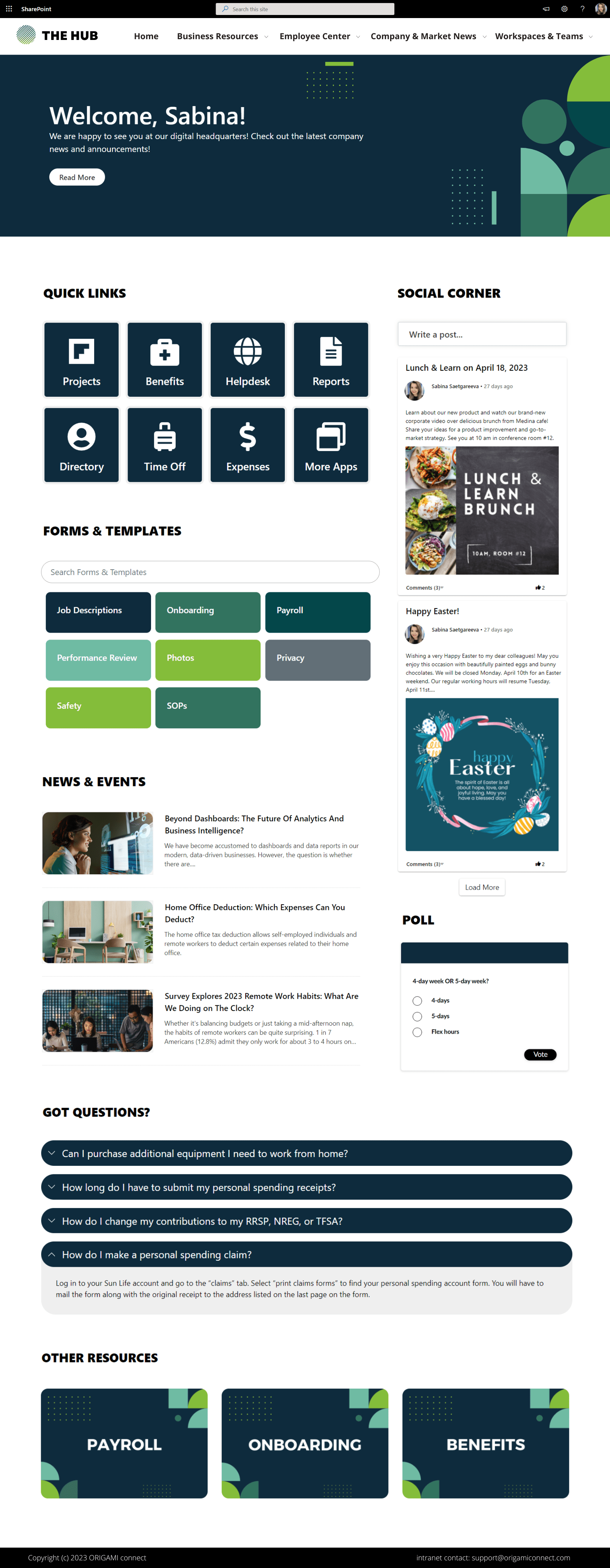












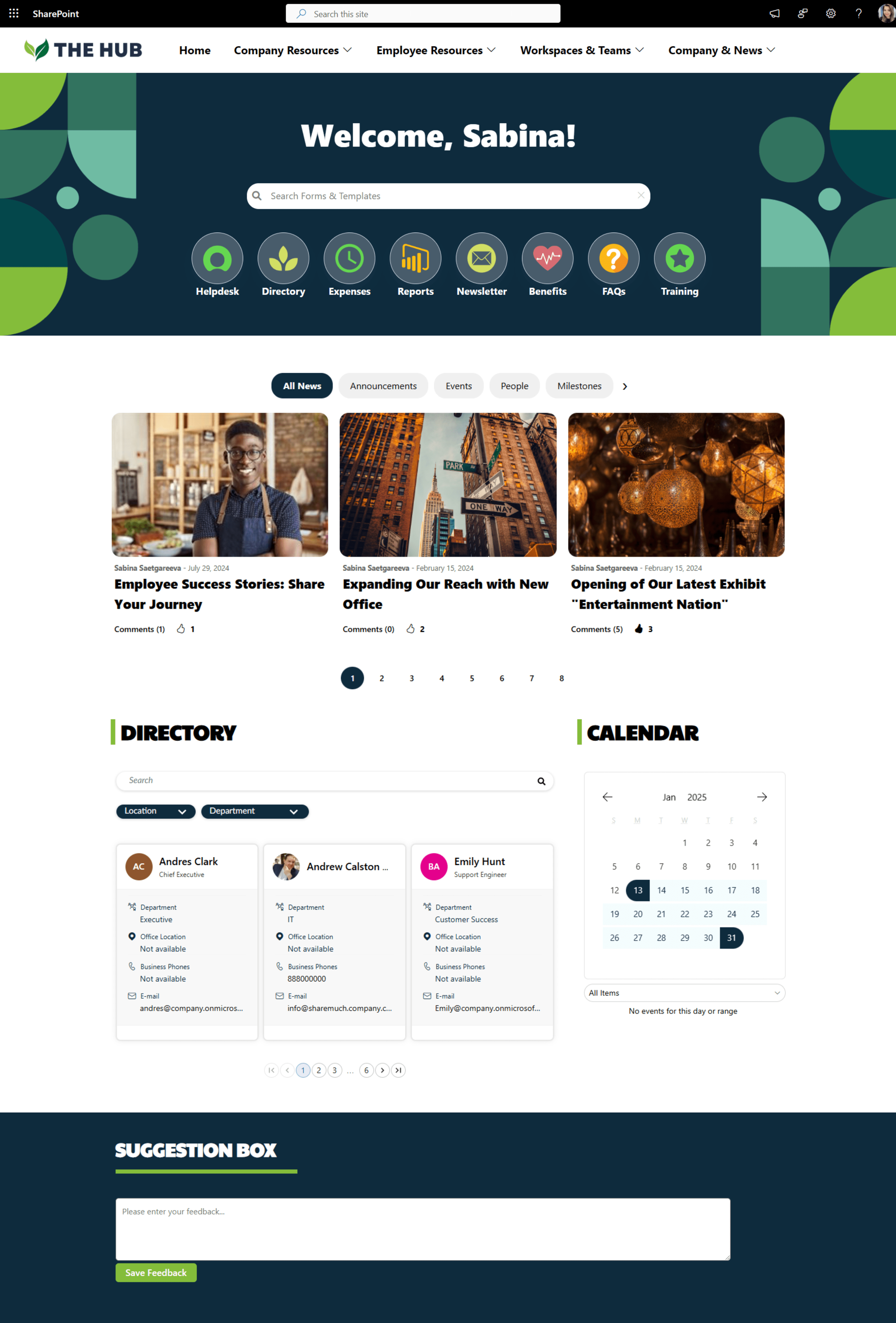






Get inspired with six company intranet examples built on data collected from hundreds of intranet sites. See intranet best practices and design ideas to help you build an intranet employees will love.