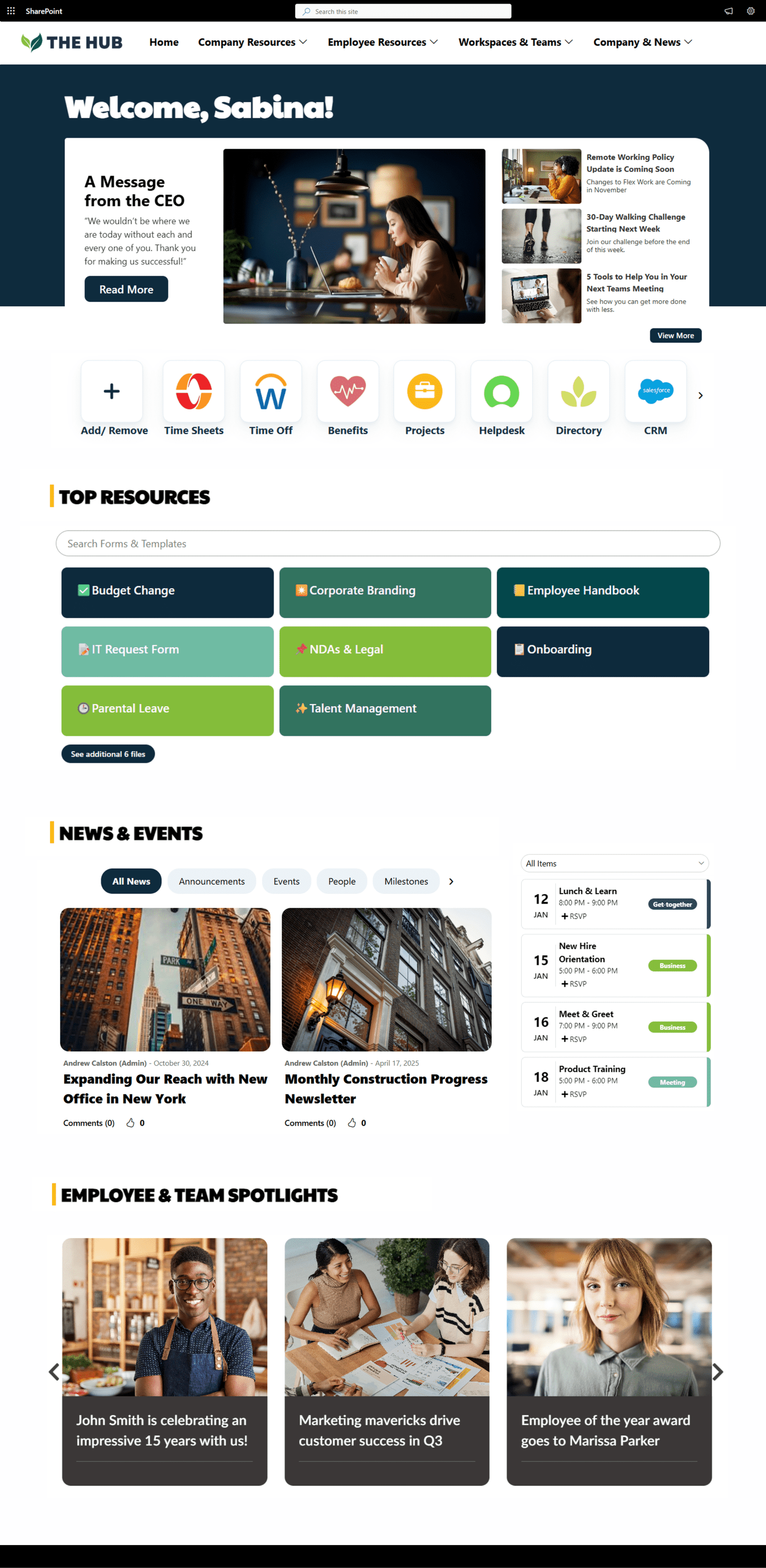
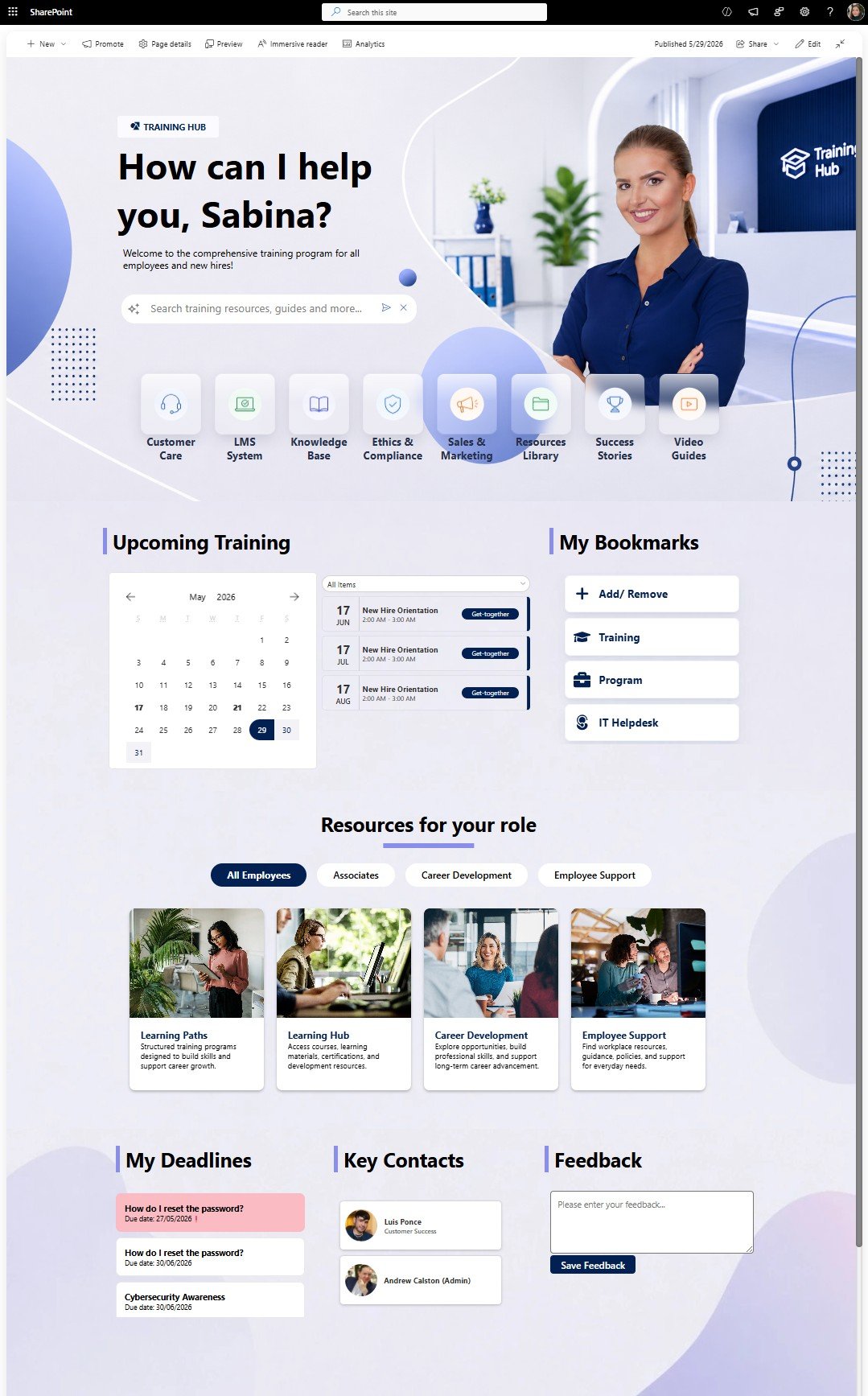
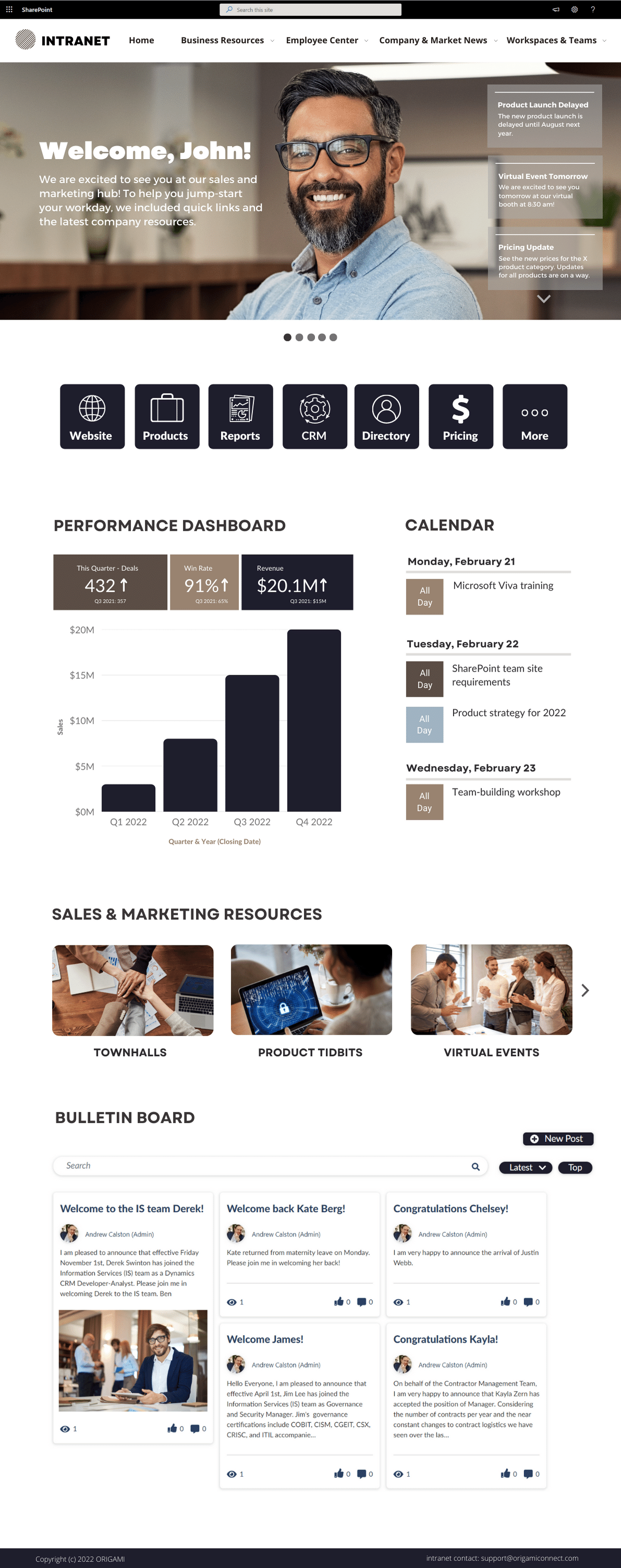
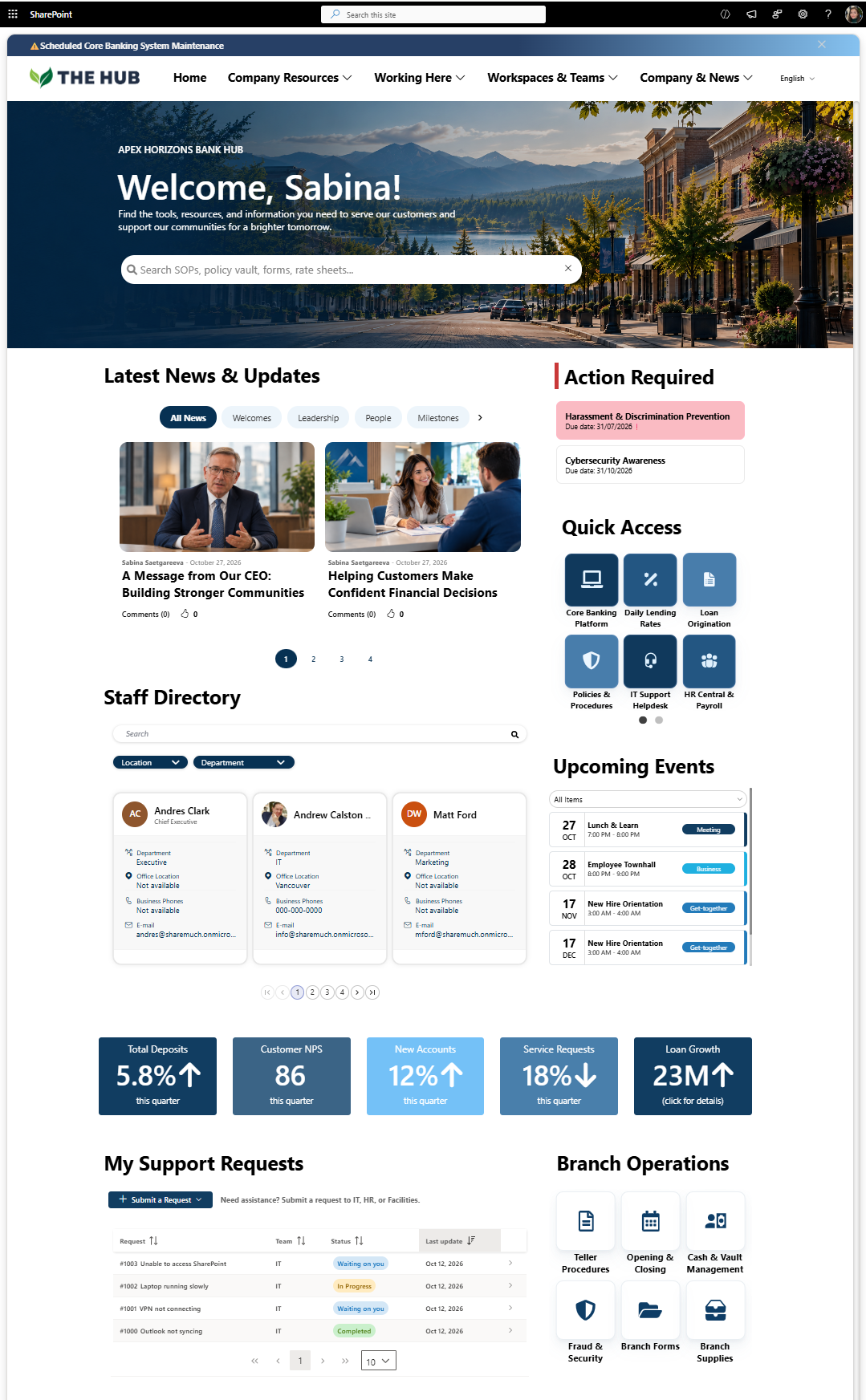
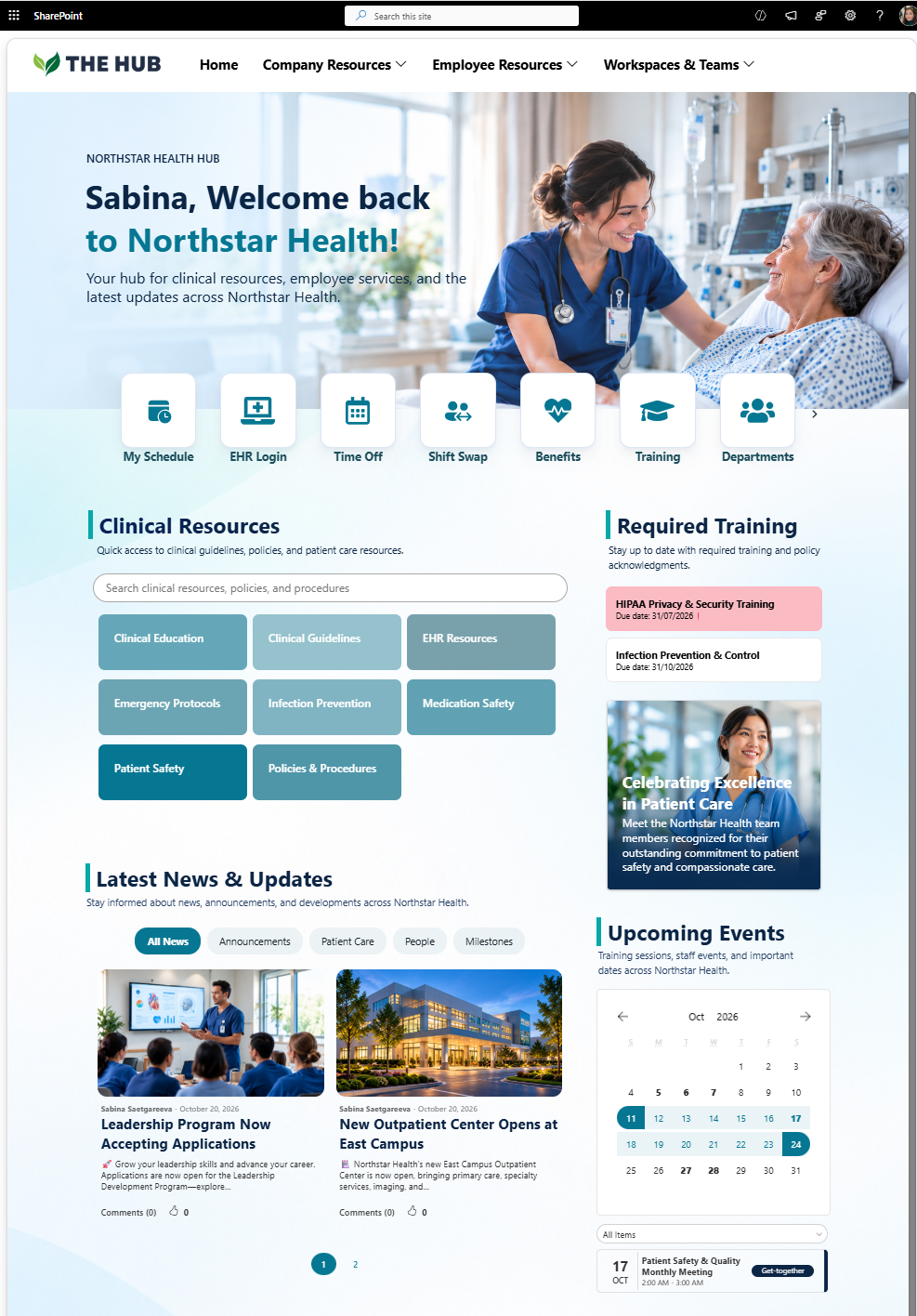
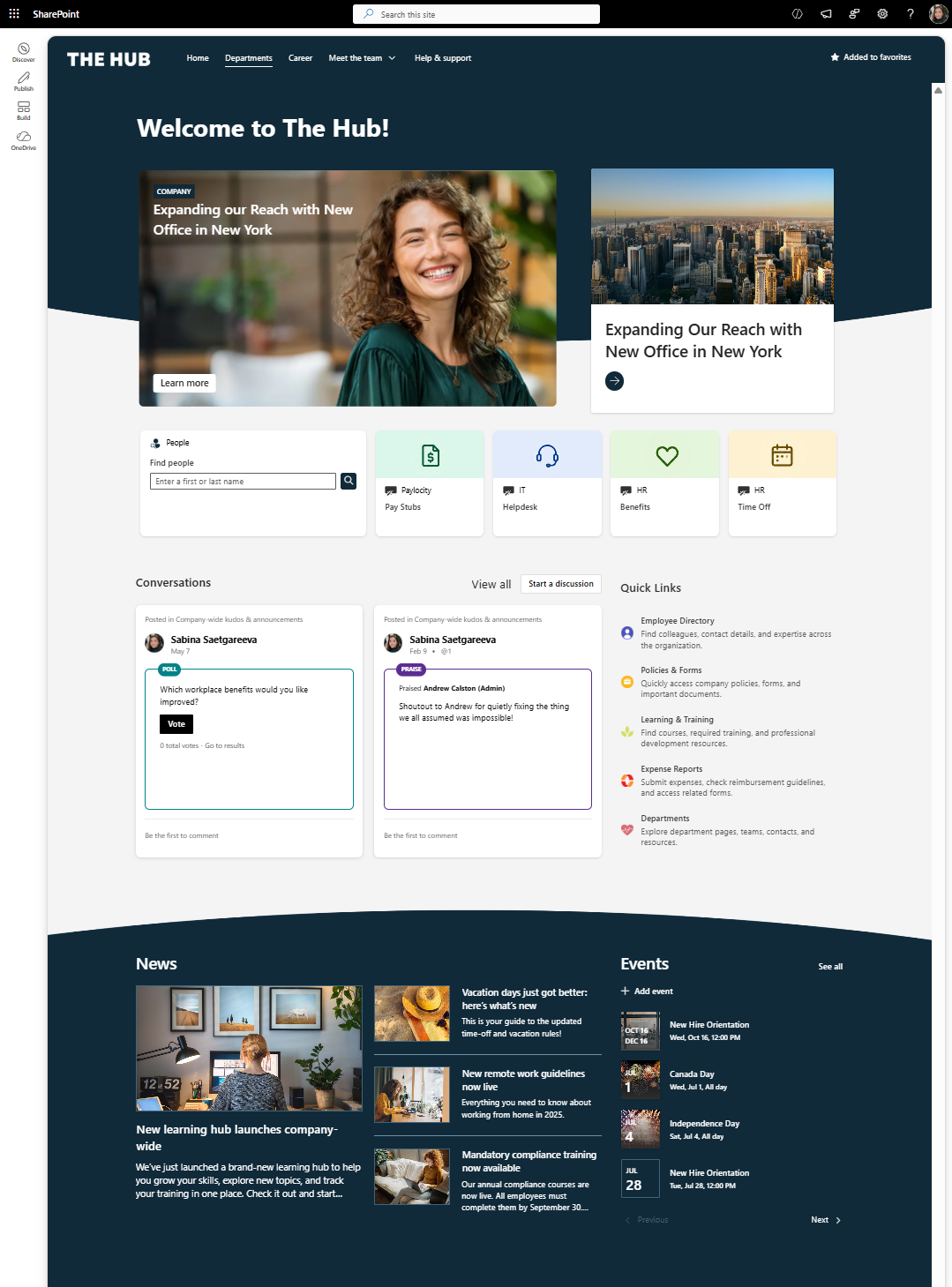
Enhance productivity and information access at your organization with this incredible list of 13 things you may not have even considered for your SharePoint intranet. Uncover the best content and information to move to your SharePoint intranet now in this amazing list.
Your SharePoint Intranet Adoption Success is 67% Dependent on these 5 Key Phases
SharePoint Metadata: Key Strategies for File Share Migration
Summary: Moving away from File share to SharePoint is one of the most painful exercises most organizations describe. With the structured approach, you can simplify this process to just a few workshops and end up with a rock-solid, and easy-to-find structure. Avoid using existing folder names as your new SharePoint structure and simplify existing containers first before defining metadata.
Although we’re builders of intranet-in-a-box, we often consult on the SharePoint migration projects (see our SharePoint migration plan). One of the most common challenges in any organization using file share, is migrating this old structure to SharePoint. Even with a wealth of tools available in SharePoint around content findability, such as metadata and tags, you still need input from your teams.
So, how do we go about it in just a few simple workshops?
Pre-Work
First, you’ll need to bring the right people to the table.
Here are few guiding principles:
Understand which teams own content in your existing file share
The ideal group size is 4-6 stakeholders
Ensure people in the room are content owners, and members who can assign tasks and allocate resources for their team. This doesn’t have to be the same person, hence we recommend 4-6 people per team.
Ensure everyone in the room is likely to contribute to their area and not just listen in.
Content Audit
You have picked the right people, now onto the content audit.
First, why do we need a content audit? Don’t we already know what content is in our file share?
Our experience shows the following:
Not everyone on the team knows everything about their existing file share structure
Much of the structure is obsolete, ad-hoc, with lots of catch-all folders
Every workshop we ran, had people discover something new about the content based on their peer’s input
Running the workshop (in person)
Request for participants to individually write down types of content their own and work with.
Give examples, such as project status report, project plan, risks and issues etc. This will help ideas flowing
Ensure participants work individually.
Request each participant to share their individual types of content and let others ask questions
Keep other participants’ interaction only for clarifications, not brainstorming, countering, or questioning workflow or business flow. There will be a separate activity to cover that :)
Remote participation
More often than not we work with hybrid teams where some participants are at the office and others are remote. There are facilitation techniques we use to accommodate this, which is a whole different topic, and with the right mix of technology and facilitation participants as productive as in on-site meetings. The key to the remote session is preparation and make sure everyone can contribute without feeling left out.
The Result
As a result, you will end up with a sample structure like below. And by the way, with all the pre-work to get to this point will only take about 45 min with an experienced facilitator.
Defining New Content Structure
Now that we have all the content on the table and everyone has the context of what everything is, it’s time to shape this into a tree.
The task is to: group relevant content into logical groups or clusters and assign labels to each cluster. For example: [Contract Template], [Agreement Template], and [SOW Template] can be collectively put into category called [Templates].
Towards the end of this exercise you will end up with something like this, notice how various content types cluster around themes forming what we call SharePoint Content Type:
At this point, we spent only about an hour and 1/2 and already have a good idea how the new repository will look like. Next, we finalize the structure.
Selecting Metadata and Tags
With the metadata you can group content by any number of tags, virtually creating “folders” on the fly. With the folder, you get to navigate the structure in a fixed format.
Regardless of method, you chose to structure your content, folder or metadata, using the output from the previous exercise, it’s easy to build the final structure.
Here are some guiding principles when tagging your content:
Use the auto-tagging feature in SharePoint to tag content automatically when it’s dropped into a specific library or folder (if you chose to go with folders).
Avoid creating hierarchies deeper than 3 levels. For example: [Project Alpha] -> [Deliverables] -> [Fact Sheet] is a good example of 3 level hierarchy.
Avoid manual versioning and creating folders to manage those. For example, avoid: Contract_v3_final, instead, rely on built-in versioning features to version your content.
This may sound like nothing to do with the metadata but we often see people create folders for Draft/Final documents which affect the content structure
Don’t confuse Metadata with a Document Type. This might sound obvious but people make this mistake all the time. Consider this scenario:
Should [Balance Sheet] be a content type or the [Year]?
The correct way is [Balance Sheet] as a Content-Type since and [Year] is a Metadata field.
NOTE: Content Types reflect entities around which rules are formed (archival, retention etc). Metadata, in this case [Year], is merely a descriptor/property of the entity.
As obvious as it is, many fileshare structures out there have the exact opposite in how folders are structured.
Conclusion
When we follow this collaborative approach with the client we see huge increase in adoption and decrease in support. The tempting alternative of bringing structure from fileshare will bring old problems to the new environment. We have used this approach on number of projects over the years and refined it meticulously for the best results, so if you have questions about details - drop us a note!
What are some of the challenges you found when migrating from fileshare to SharePoint? Leave your comment below.
Yaroslav Pentsarskyy is the Director of Product at Origami. He's also 8 time Microsoft MVP, speaker at many local and worldwide tech events, and a published author of several SharePoint related books.
Intranet Launch Check List and Activities
Can you measure the ROI of your intranet design efforts?
SharePoint Intranet Essentials and Must-haves for a Modern Intranet
7 Steps to Effectively Introduce an Employee Intranet & Digital Workplace
Have you seen rich analytics locked in your Office 365 tenant? Here is how to enable and access them
Your next document management system is going to be perfect!
First, let me give you a scenario:
You have 30 documents in a folder. You need to find a document with an “agreement” as part of its name. Would you use search or look through file names?
Hold that answer!
Here is a scenario 2. You have 30,000 documents and you need to find the one with the word “agreement” in it. Would you still look through file names manually?
Wait, how did I know you’re going to chose “manual answer” for the first scenario?
In one of my projects we tested user’s behavior in a similar sort of way as you did just now. Instead of files, they needed to find case records. We found that users resort to more structured approach when the amount of information they must deal with appears to be manageable. They prefer to look through views, names on a record, file creation date etc.
In contrast, when there is too much to go through, it becomes data. Data is best parsed by our unconscious intuition because our brain relies on finding patters since it understands that there is no match analyzing all the data consciously.
According to this an autonomous driving car processes 100GB of data each second – that's what your brain does and you don’t even bother!
Now, back to designing your document management system. How much data are you presenting to your users? Are you providing tools to help users find what’s in front of them?
Many organizations rely on search to help users find documents, but do nothing to improve it. Is your search contextual? Is content being searched for specific enough? What about draft content or duplicate sources? What about old and irrelevant content?
Here are few approaches to designing better document management systems:
1. Turn data into information as early as possible. It’s easy to create a document library and drop forms in Excel format into the library, but now the data in those Excel sheets is not readily available until someone opens the file.
Perhaps a better solution is to offer users enter the data in a structured way using a list, CRM system, or an app.
Now that data is safe but you can also report on it, draw pretty graphs, search with variety of filters and tools. I’m not suggesting you should convert every document into a list or an app. Simply identify those high traffic, high value types and automate them. The effort you’ll spend will pay off each time your users interact with the structured data.
2. Retire obsolete content. Why, you ask? Isn’t storage cheap? Yes, the storage is cheap but not the time your users are going to spend looking for something useful in a whole pile of not so useful, old content.
You don’t have to delete things right away. With SharePoint you can set expiration workflows which will automatically archive and eventually delete content passed their set expiration. You can even have SharePoint send you a report of expired content before you decide on what to do with it. So if those are business expense receipts you’re keeping for the 10th year – it’s time for them to go.
3. Know your user’s workflow and design the system accordingly. Does your user’s day start with working on documents from yesterday or last month? Perhaps create views to help them see most recently accessed or worked on documents. Perhaps you need a “manager view” to separate some features used mainly by managers and not overburden the interface with too many filters and buttons.
If part of the workflow is for your users to fill in a form and attach a document, help them out by putting related functions together. Minimize button clicks, new browser sessions, tabbing and switching. If it doesn’t seem intuitive for you, and you built it, it probably won’t feel intuitive to others.
4. Eliminate useless features. Just because something is cool it doesn’t mean it’s helpful. With constant overload of new features in the product it’s important to only introduce the ones that will help your users. Think what’s usable, intuitive, simple, and easy to find.
Best part of all, most of the tools are there out-of-the-box so there is very little configuration investment involved.
What are your thoughts?
We’re here to help
If you have questions on how to make your intranet more engaging while leveraging your existing Office 365 and SharePoint investment, we’re here to help you make that impact.
Yaroslav Pentsarskyy is the Director of Product at Origami. He's also 8 time Microsoft MVP, speaker at many local and worldwide tech events, and a published author of several SharePoint related books.


Intranet IA expert tips and step-by-step guide for leading intranet information architecture workshops to shape your intranet. Discover expert intranet ia insights and all you need to know to create a phenomenal intranet ia for your organization.